
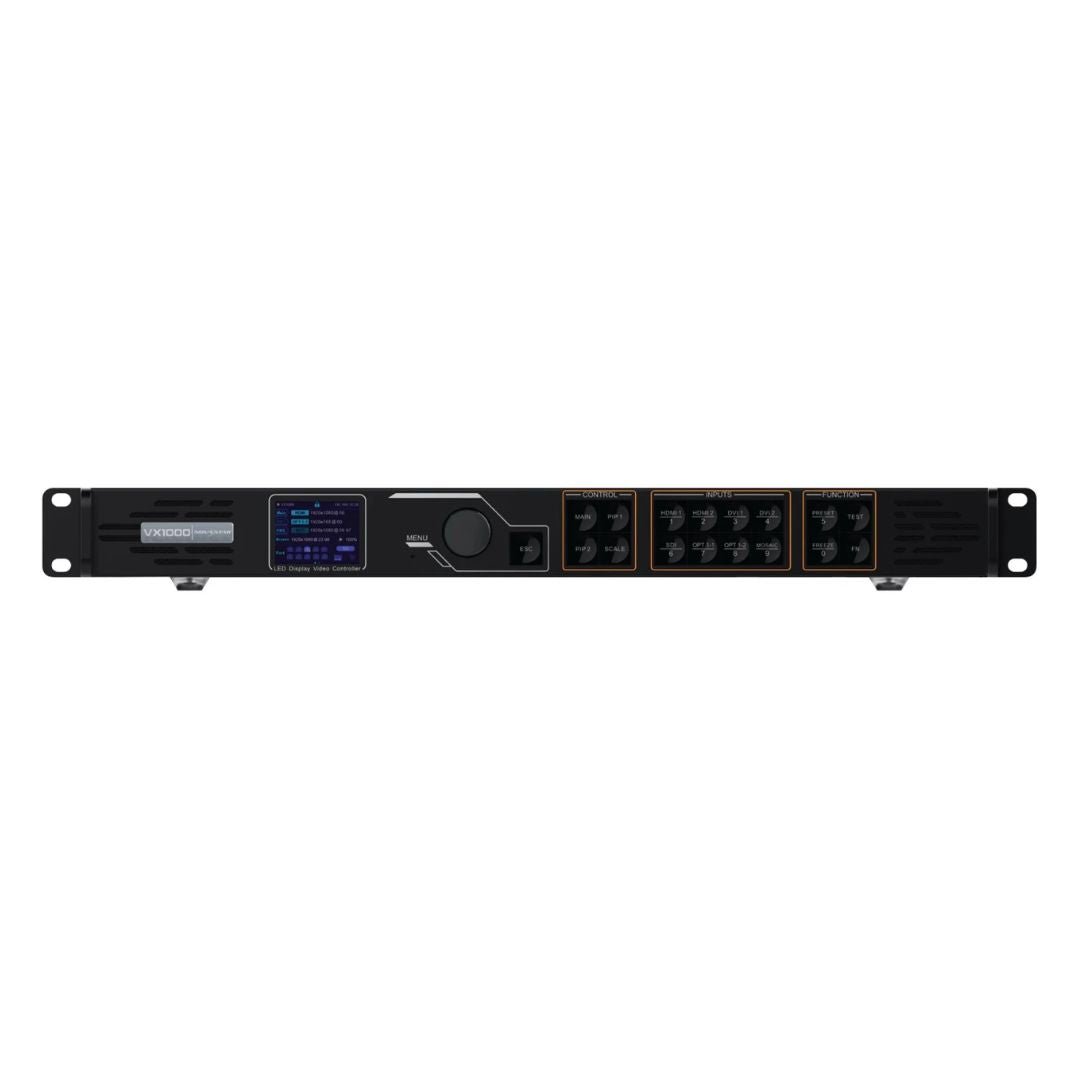
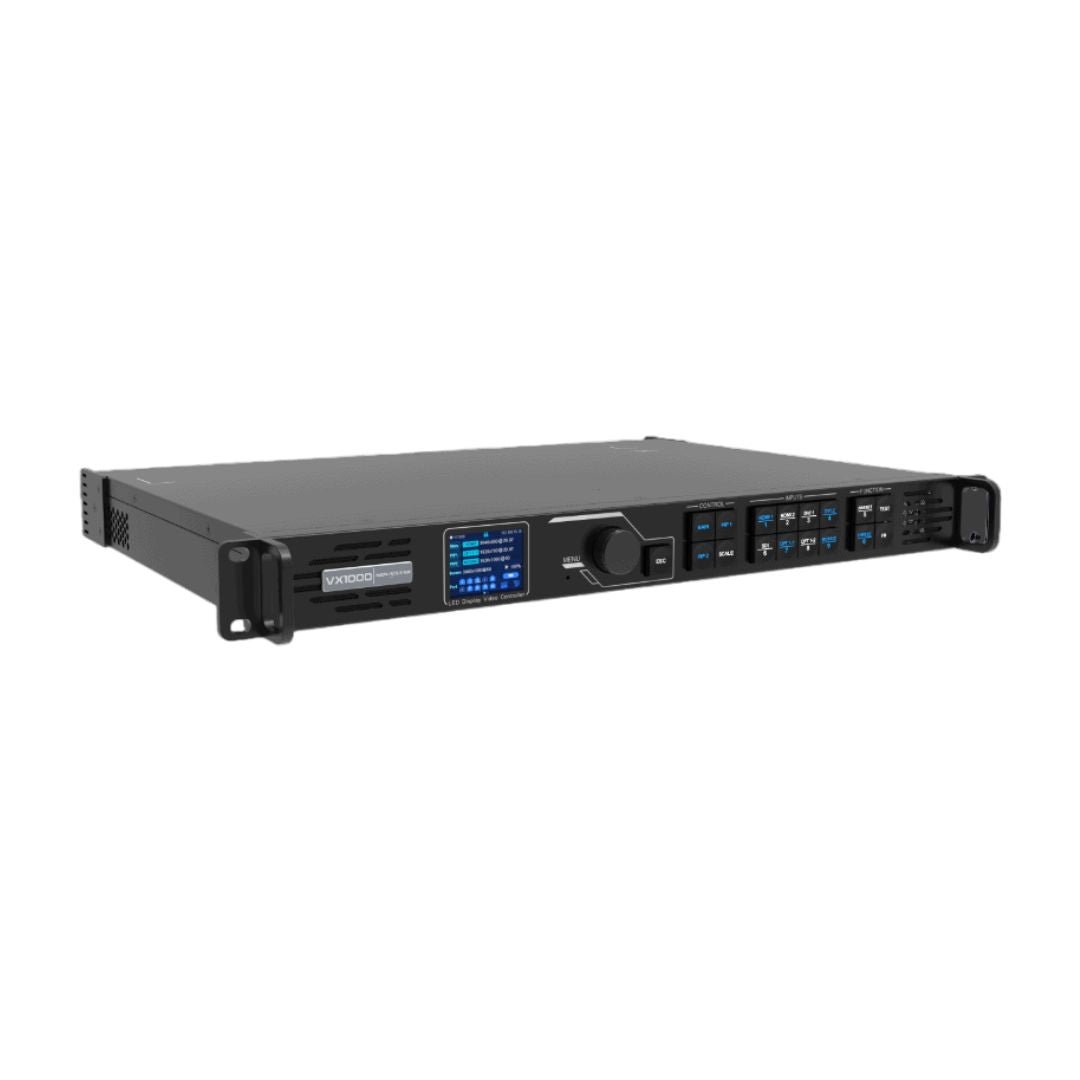
What is the NovaStar VX1000 video processor?
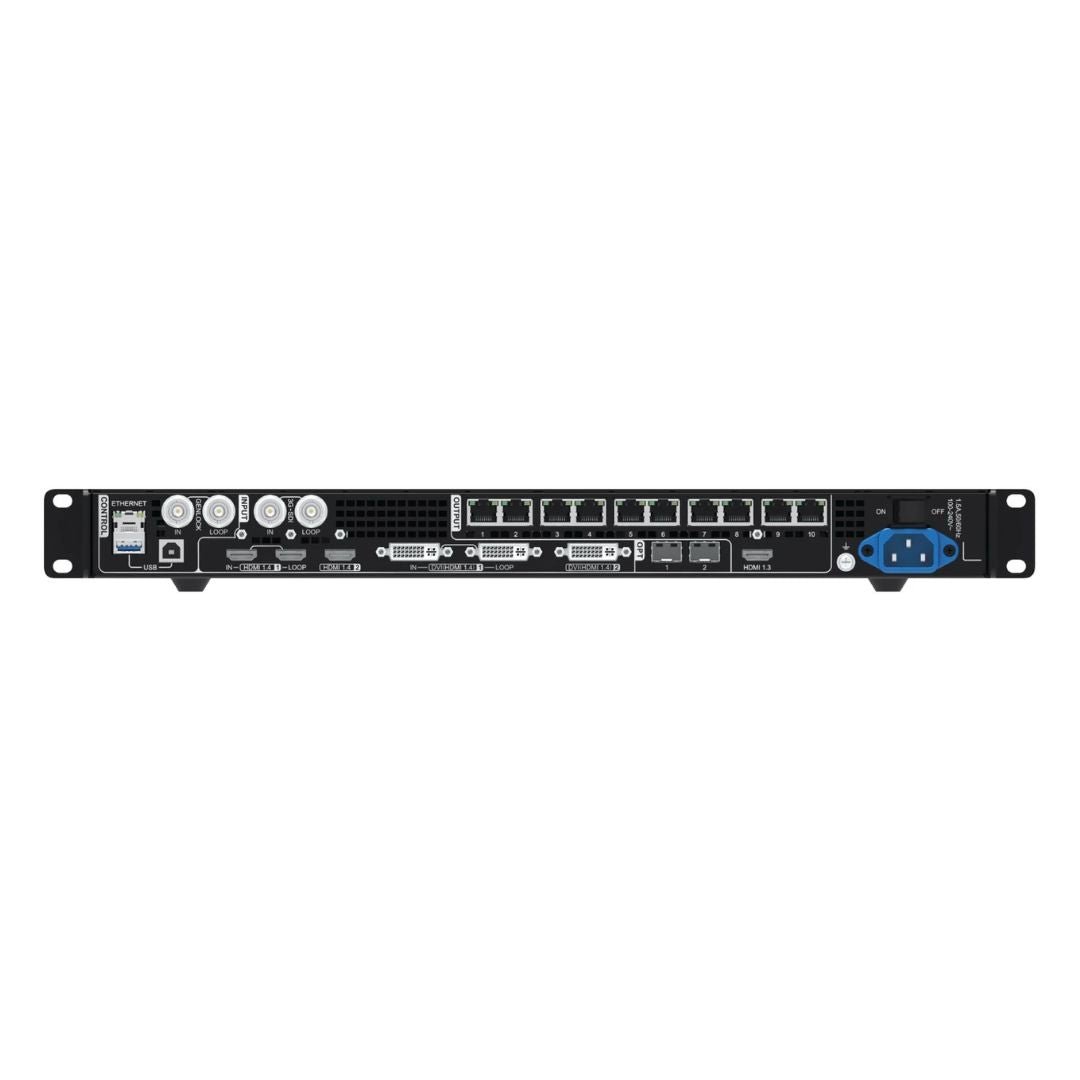
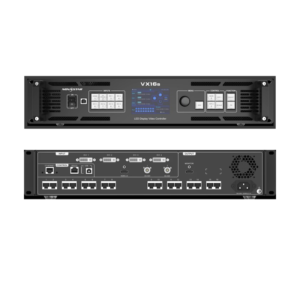
The NovaStar VX1000 sits between your video sources and the LED wall. It takes inputs from devices such as a laptop, camera or playback system, turns them into one finished picture for the screen, and sends that picture to the LED cabinets through ten Ethernet outputs or 10G optical links.
It combines two jobs in one rack unit: video processing and LED sending. That makes it a practical choice for rental, staging and fine-pitch LED walls that need source selection, simple picture-in-picture, screen mapping, Genlock and backup without adding a separate processor and sending controller.
VX1000 key features
- One box for processing and LED sending: turn a laptop, camera or playback source into one finished picture for the LED wall.
- Ten mapped outputs: suit a medium-to-large wall when the cabinet chains can be planned within each port.
- Three layers and ten presets: recall a presentation, camera and logo layout without rebuilding the screen before each cue.
- Backup and timing tools: build a tested source and data path for live events where a blank wall is disruptive.
Can the VX1000 handle your video sources and LED wall?
Start with two questions: can the VX1000 accept the source signal, and can it carry the finished LED wall? It supports up to three on-screen layers and 8-bit HDMI 1.4, DVI or 3G-SDI sources. A laptop picture, one camera picture and a small logo on top are a normal fit. A show that needs many separate windows, 4K60 or HDR needs a newer processor.
Next, check the wall. The VX1000 can load up to 6.5 million pixels. It can support a very wide or very tall screen, but width, height and total pixels must all stay within the documented limits. The total wall may fit while one Ethernet port is still overloaded, so the cabinet load on every port must be planned separately.
NovaStar VX1000 specifications
Use this table to check the source, screen and installation limits before choosing the VX1000.
| LED load and outputs | Up to 6.5 million pixels through 10 Gigabit Ethernet outputs. |
|---|---|
| Source inputs | 2× HDMI 1.4, 2× DVI, 1× 3G-SDI and self-adaptive 10G OPT 1. |
| Live layout | 3 layers and up to 10 user-defined presets. |
| Signal planning | 2× 10G optical ports, Genlock and documented source or Ethernet backup options. |
| Key limit | 8-bit source workflow; HDMI/DVI do not accept 4K60, 10-bit or 12-bit input. |
Checked against NovaStar VX1000 Specifications V1.6.0. Open the VX1000 datasheet page or download the VX1000 Datasheet PDF.
How the VX1000 connects sources to an LED wall
- Connect the source. Feed the VX1000 with HDMI 1.4, DVI, 3G-SDI or a compatible 10G optical source that stays within the resolution and 8-bit input limits.
- Build the screen picture. Use the VX1000 to scale, crop and layer the source, then save any presets, sync and backup settings the show needs.
- Send data to the cabinets. Map the finished picture across ten Ethernet outputs or the optical copy/backup path. The receiving cards inside the cabinets then drive the LED modules.
Each Ethernet port has its own limit: up to 650,000 pixels. The port order and cabinet count also need to follow the quick-configuration rules in the manual. On an irregular wall, confirm the port map before installation day instead of finding an overloaded port during setup.
The cabinet side matters too. Choose receiving cards that match the LED modules, hub board and cabinet file, then use the same configuration when you map the wall in NovaLCT.
VX1000 live switching, layers and backup
Once the screen is mapped, the VX1000 helps the operator run the show. It can crop and scale a source, place a main picture with two PIP layers, and recall up to 10 presets from the front panel or software. For example, one preset can show a full-screen laptop, while another shows a camera with a logo or speaker slide.
Genlock keeps several processors or camera-facing screens on the same timing reference. Input backup and Ethernet-port backup provide a second path if a source or data link fails. Low-latency mode is useful when a live camera feed is shown close to the real performer, because visible delay becomes distracting.
These modes are not all interchangeable. Bypass reduces delay but skips normal video processing. 3D mode halves the available output capacity, so recalculate the wall size before promising 3D playback.
VX1000 setup with NovaLCT and V-Can
Use NovaLCT to build the LED wall: load the cabinet file, map the cabinets to the correct output ports and save that configuration to the receiving cards. Use V-Can when you need to run the VX1000 itself, including layers, presets and firmware updates.
Start with the wall, then test the show sources. This order keeps an input change from hiding a cabinet-mapping problem.
- Connect the control computer to the VX1000 by Ethernet or USB.
- Load or confirm the correct cabinet configuration file in NovaLCT.
- Map cabinets and backup paths to the ten Ethernet outputs.
- Confirm the source format and any EDID or custom-resolution setting.
- Build layers and presets, then test the real laptop, camera or playback source.
- Before updating firmware, save the working screen configuration and read the exact VX1000 release notes.
VX1000 applications
Rental stages
Keep a camera, playback laptop and a simple picture-in-picture layout in one unit, then recall the right preset for each show cue.
Presentations and worship
Move between slides, camera and playback while keeping one tested screen map and a small set of easy-to-recall presets.
Wide LED ribbons
Use a long, shallow canvas when the 10,240-pixel width, total pixel load and load on every Ethernet port all fit.
Live events with backup
Use source backup, Ethernet-port backup, optical copy/backup and Genlock where a blank screen would disrupt the event or installation.
VX1000 source and operating limits
The VX1000 uses an 8-bit input workflow. It does not accept 10-bit or 12-bit sources, and HDMI/DVI stop at 3840×2160@30Hz or 3840×1080@60Hz. If the source is HDMI 2.0 4K60 or HDR, or if the show needs many independent windows, a VX1000 Pro, VX2000 Pro or a COEX/MX system will be a better match.
Some modes cannot be used together. Mosaic mode combines matched sources into the main picture; when it is on, picture-in-picture cannot be added. Test that exact layout before show day if the program needs both features.
3D needs the EMT200 emitter and matched glasses. It also halves the output capacity, so a screen that fits in normal mode may need a different plan for 3D playback.
VX1000 manual, datasheet, firmware and software
VX1000 user manual
Use the VX1000 User Manual page or download the VX1000 User Manual PDF for wiring, setup, presets and maintenance. The VX1000 / VX600 Quick Start Guide PDF helps with first connection checks.
VX1000 datasheet
Use the VX1000 Datasheet page or download the VX1000 Datasheet PDF to check capacity, inputs, outputs, dimensions and power.
VX1000 firmware
Use the verified VX1000 Firmware V2.5.1 ZIP with the VX1000 V2.5.1 release notes. Save the working screen configuration before updating.
VX1000 vs VX600 vs VX1000 Pro
Match the output count, source format and screen capacity to your LED system before choosing a model.
| Model | LED load | GbE outputs | Layer resources | Best fit |
|---|---|---|---|---|
| VX600 | 3.9M | 6 | 3 | Smaller walls that do not need ten Ethernet outputs. |
| VX1000 | 6.5M | 10 | 3 | Medium-to-large walls using HDMI/DVI/SDI sources, three layers and ten Ethernet outputs. |
| VX1000 Pro | 6.5M | 10 | 6× 2K resources | Newer projects that need HDMI 2.0, Unico control, more presets and a current VX Pro workflow. |
| VX2000 Pro | 13M | 20 | 12× 2K resources | Larger walls, more layer resources or source formats beyond the VX1000 class. |
Choose the VX1000 when the wall needs ten Ethernet outputs and the sources fit its HDMI/DVI/SDI limits. Choose VX600 when six outputs are enough. Choose VX1000 Pro or VX2000 Pro when the project needs 4K60, more layer resources, more presets or a larger canvas. Browse all NovaStar video processors if the project falls between these options.
VX1000 frequently asked questions
Is the NovaStar VX1000 a video processor or a controller?
It is both. It processes video sources and sends the finished LED data to NovaStar receiving cards, so many systems do not need a separate scaler and sending controller.
What size LED wall can the VX1000 drive?
One unit loads up to 6.5 million pixels, with a maximum width of 10,240 pixels or maximum height of 8192 pixels. The total pixel count and each Ethernet port’s cabinet load still need to be checked.
Can the VX1000 take a 4K60 HDMI source?
No. HDMI/DVI support up to 3840×2160@30Hz or 3840×1080@60Hz. For HDMI 2.0 4K60 workflows, consider VX1000 Pro, VX2000 Pro or a newer processor.
What software is used for VX1000 setup?
Use NovaLCT to load the cabinet file, map the LED wall and configure receiving cards. Use V-Can to manage layers and presets, and to follow the VX1000 firmware-update workflow.
How many layers does the VX1000 support?
It supports three layers: one main layer plus PIP 1 and PIP 2. Mosaic-source use and 3D mode can limit what can run at the same time.
Should I update VX1000 firmware before an event?
Only if there is a clear reason and you have the exact firmware package, release notes and a saved working configuration. Do not start a firmware update during a live show day.
Reviews
There are no reviews yet.