
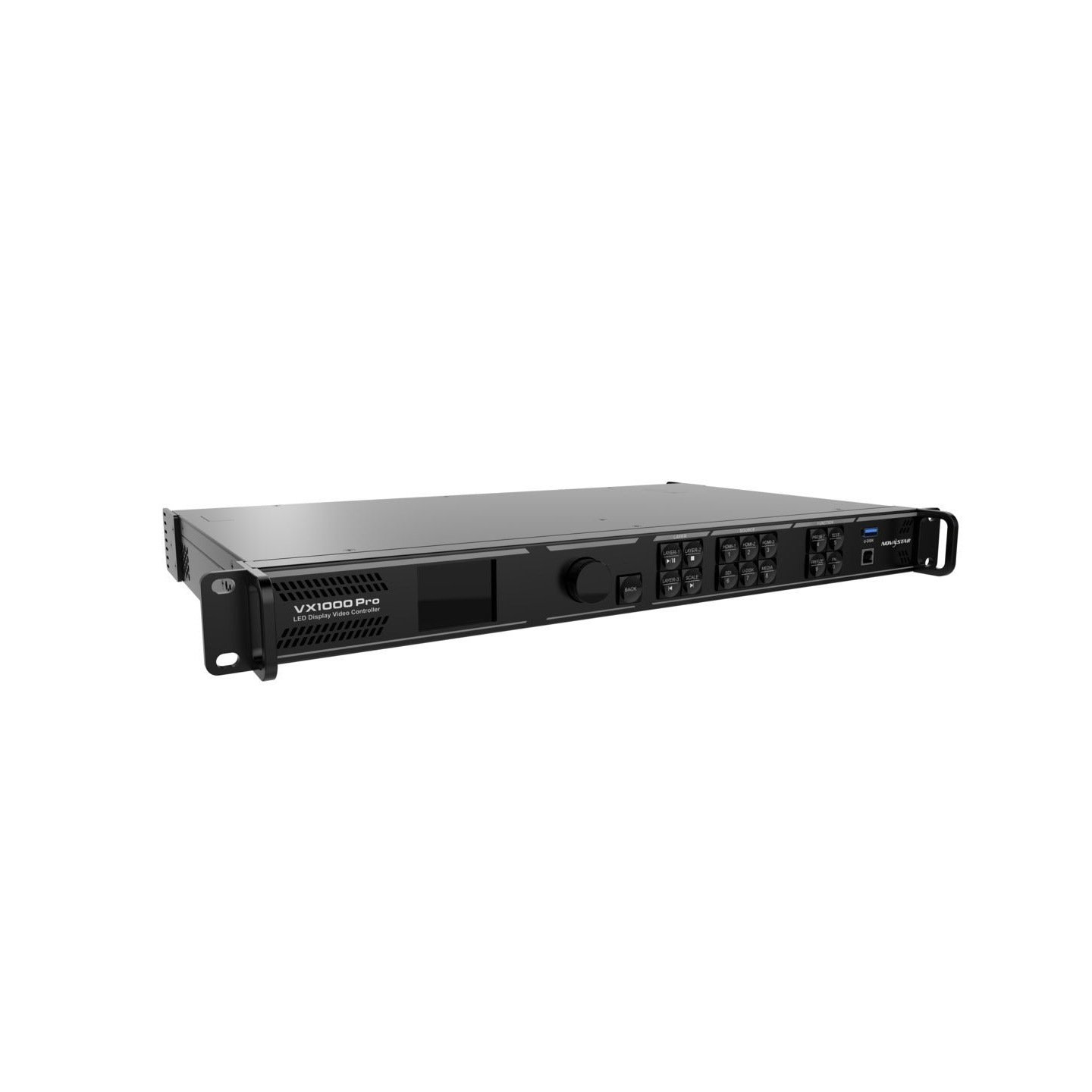
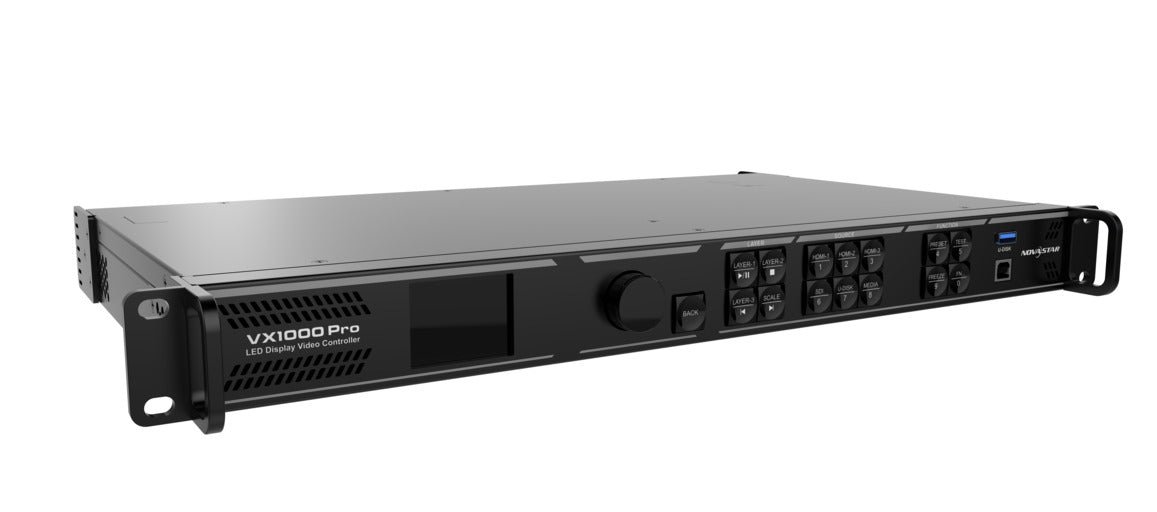
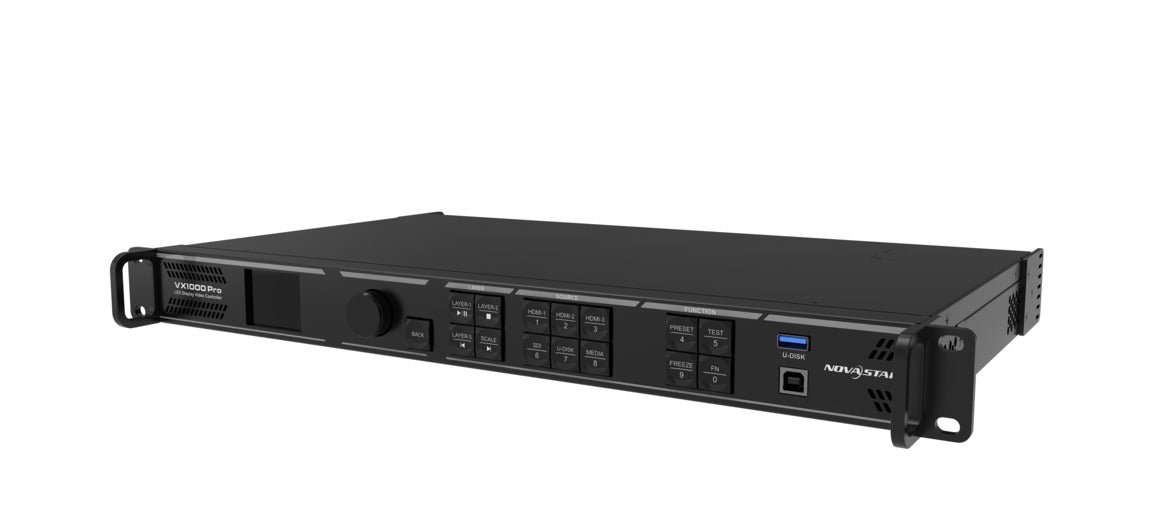
What is the NovaStar VX1000 Pro, and who is it for?
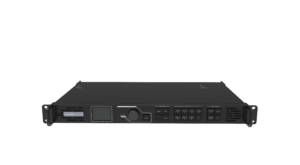
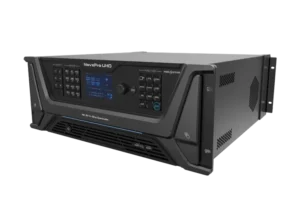
The NovaStar VX1000 Pro is an all-in-one video processor and LED controller. It takes live video sources, crops and scales them into a show layout, then sends that finished canvas to NovaStar receiving cards. One rack unit can replace a separate scaler, switcher and sending controller for many medium-to-large LED walls.
Choose it when the system needs up to 6.5 million pixels, ten Ethernet outputs, several source layers, fast preset recall or a fiber path to the screen. The key buying question is not only wall size. You also need to count source formats, layer resources and how the operator will switch the show.
VX1000 Pro key features
- Current 4K60 source handling: take a modern HDMI 2.0 source and turn it into a planned LED canvas.
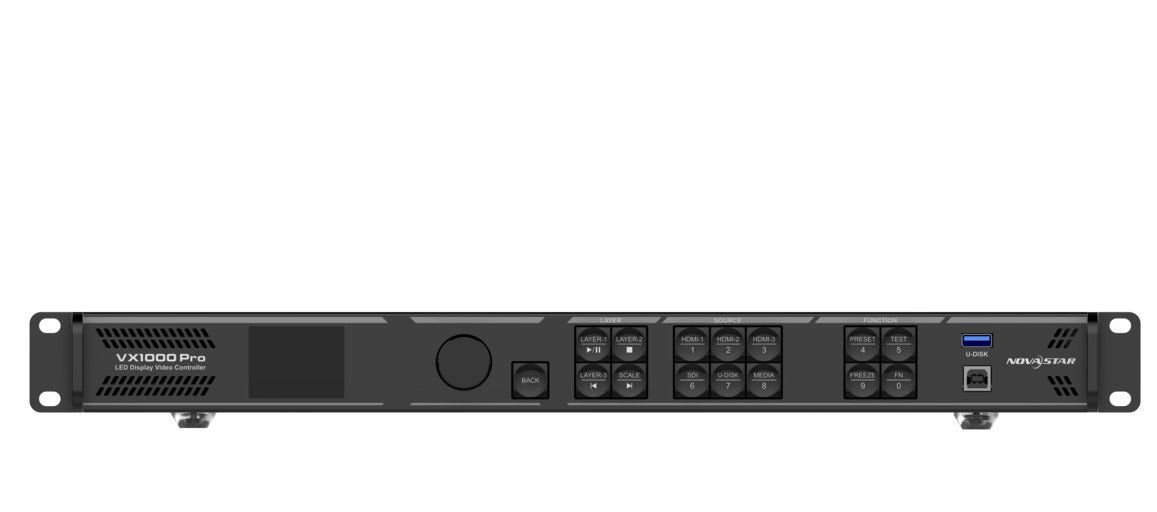
- Six shared layer resources and 256 presets: move between camera, playback, slides and sponsor looks without rebuilding the show each time.
- Ten output paths with optical options: support a larger or wider wall after its cabinet map and backup route are tested.
- Unico-based operation: give the operator one workspace for sources, layers, presets and saved show projects.
VX1000 Pro sources, scaling and six layer resources
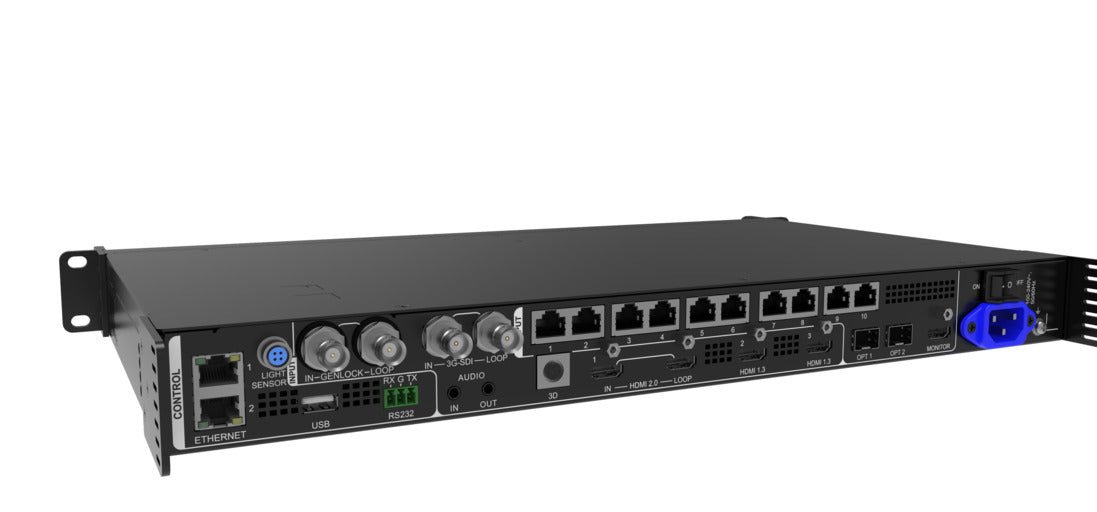
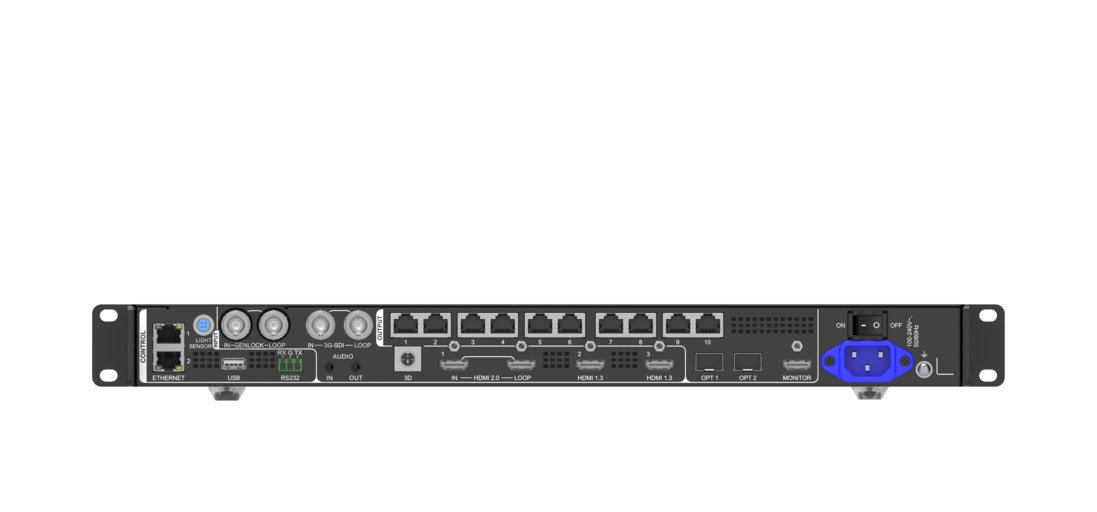
The VX1000 Pro accepts HDMI 2.0, two HDMI 1.3 sources, 3G-SDI, a 10G optical source and media from a USB drive. You can crop a source, scale it full-screen or pixel-for-pixel, place layers freely and save the result as one of 256 presets. That makes it useful when an operator must move between a full-screen camera, slides, sponsor graphics and picture-in-picture looks during the same event.
“Six layers” is shorthand for six 2K×1K layer resources, not six 4K layers. A 2K×1K layer uses one resource, a 4K×1K layer uses two, and a 4K×2K layer uses four. Plan the layout before ordering: one 4K×2K layer leaves only two 2K resources for other layers.
The unit also supports text or image OSD, but those tools have combination limits. Use the full manual when the show depends on dynamic text, weather/time OSD or complex source mosaics.
Can the VX1000 Pro drive your LED canvas?
A single VX1000 Pro loads up to 6,500,000 pixels through ten Gigabit Ethernet ports. The complete canvas can be as wide as 10,240 pixels or as high as 8,192 pixels, but the total pixel count still has to remain inside 6.5 million. A 10,240-pixel-wide screen therefore cannot also be thousands of pixels tall.
Free topology can place cabinets without forcing a rectangle on each Ethernet port. It requires supported receiving cards, and the circumscribed rectangle around the complete screen must still fit the processor’s loading limit. If the wall is split into several physical sections, map every cabinet and backup port before treating the pixel total as the only check.
For long runs, OPT 1 can act as a 10G video input or as an output carrying Ethernet ports 1–10. OPT 2 copies or backs up those ten outputs. Confirm the optical endpoint and fiber type rather than assuming the port connects directly to any network switch.
VX1000 Pro specifications
Use this table for selection. The official PDF contains the full resolution, sampling and bit-depth matrix.
| LED load and outputs | Up to 6.5 million pixels through 10 Gigabit Ethernet outputs and 2× 10G optical ports. |
|---|---|
| Current source path | HDMI 2.0 4K60, HDMI 1.3, 3G-SDI, 10G optical input and USB playback. |
| Live composition | Six shared 2K×1K layer resources and up to 256 presets. |
| Operating modes | Video Controller, Fiber Converter and ByPass. |
| Control | Unico, NovaLCT, VICP, front panel and optional remote. |
Verified against the official VX1000 Pro Specifications V1.3.0. Open the VX1000 Pro datasheet page or download the official VX1000 Pro Datasheet PDF.
VX1000 Pro presets, sync, low latency and backup
For show operation, the most useful tools are one-button preset recall, input and device backup, output synchronization and restore points. The unit can store up to five configuration restore points within a 1 GB total limit. It can also test a prepared Ethernet backup without unplugging the live cables.
Latency depends on mode. Video-controller mode is 1–2 frames with low latency enabled. ByPass can reach 0 frames, but ByPass turns off the processor’s video-processing functions. In ByPass mode, low latency and Genlock cannot be enabled together. Fiber-converter mode is 0 frames because it converts the link rather than building the image.
Genlock or an input source can synchronize cascaded processors. If the project depends on camera timing, test the chosen mode, source format, screen topology and backup behavior together before the event.
VX1000 Pro setup with Unico and NovaLCT
Unico is the main workspace for VX Pro show control: create a project, discover the processor, set sources and outputs, build the screen topology, place layers, save presets and export the project. Current Unico 2.7.0 installers are available for Windows and Mac.
NovaLCT remains important for receiving-card and cabinet configuration, calibration and deeper LED screen setup. Do not update firmware or overwrite receiving-card files just to make a new processor appear. First export the current project and cabinet files, confirm the receiving-card model and hardware revision, then use the matching tool and files.
- Connect the control computer by Ethernet or USB and discover the unit.
- Confirm each input format and set EDID only when the source needs it.
- Enter the real canvas size and map cabinets across the ten outputs.
- Build layers and presets, then test primary and backup paths.
- Export the working project before any firmware change.
{a(‘/product-category/receiving-cards/’, ‘Choose compatible NovaStar receiving cards’)} and use the official quick-start guide for the first connection.
VX1000 Pro applications
Rental and stage
Ten outputs, 256 presets and front-panel shortcuts support repeatable live looks without adding a separate sending box.
Broadcast and camera work
Genlock, monitoring output and defined latency modes help the operator build a tested camera-to-LED workflow.
Fine-pitch and wide canvases
The 10,240-pixel width limit and free topology help with wide or irregular layouts when receiving cards support it.
Split or redundant systems
Input, device, Ethernet, optical and receiving-card backup options support projects that need planned failover.
If the show needs more than six 2K layer resources, more than 6.5 million pixels, native DisplayPort or 12G-SDI, move up in the range instead of adding fragile adapters and workarounds.
VX1000 vs VX1000 Pro, and when to choose another VX Pro
The older VX1000 shares the same 6.5-million-pixel and ten-port headline capacity, but the current Pro platform adds HDMI 2.0, six 2K layer resources, 256 presets, Unico control and the current backup/restore workflow. For a new system, the Pro is the clearer choice unless an existing project is locked to the older unit.
| Model | LED load | GbE ports | Layer resources | Choose it for |
|---|---|---|---|---|
| VX400 Pro | 2.6M | 4 | 6× 2K×1K | Compact walls with the same basic source family |
| VX600 Pro | 3.9M | 6 | 6× 2K×1K | Mid-size walls that do not need ten copper outputs |
| VX1000 Pro | 6.5M | 10 | 6× 2K×1K | Larger/wider walls and stronger output redundancy |
| VX2000 Pro | 13M | 20 | 12× 2K×1K | More pixels, layers, 12G-SDI and DisplayPort |
Step down to the VX600 Pro when six outputs cover the wall. Choose the VX2000 Pro when the design needs 13 million pixels, 12 layer resources, 12G-SDI or DisplayPort. Browse all NovaStar video processors for other source and output combinations.
VX1000 Pro manual, datasheet, firmware and software
VX1000 Pro user manual
Use the VX1000 Pro user-manual page or the VX1000 Pro User Manual PDF for connections, setup and operation.
VX1000 Pro datasheet
Use the VX1000 Pro datasheet page or the VX1000 Pro Datasheet PDF for inputs, capacity and physical details.
VX1000 Pro firmware
Download the exact VX1000 Pro firmware package only after exporting the project; then read the matching release notes.
Unico and NovaLCT
Use Unico for Windows or Unico for Mac for the processor. Use NovaLCT for receiving-card and cabinet work.
These are current official NovaStar resources, not guessed filenames. Keep a known-good project export and cabinet files with the system so a replacement laptop or processor can be brought online safely.
VX1000 Pro buyer questions
Does the VX1000 Pro need a separate sending card?
No. It processes the source and sends LED data from the same unit. Receiving cards are still required inside the LED cabinets.
Can it run two different LED screens?
It can map multiple sub-screens inside one project when their combined canvas, port loads and circumscribed rectangle remain within capacity. Treat each screen’s cabinet map and backup path as part of the calculation.
Does it really have six layers?
It has six 2K×1K layer resources. A 4K×2K layer consumes four, a 4K×1K layer consumes two and a 2K×1K layer consumes one.
Is the VX1000 Pro zero-latency?
Only ByPass and fiber-converter operation can be 0 frames. Video-controller mode is 1–2 frames with low latency, and ByPass disables the video-processing functions.
Can I connect its fiber port to a normal network switch?
Do not assume so. The optical ports carry NovaStar video/control links. Confirm the matching NovaStar endpoint, module and fiber type for the planned distance.
What should I save before a firmware update?
Export the Unico project and cabinet files, note the current firmware and receiving-card versions, read the exact release notes and keep stable power through the update.
Reviews
There are no reviews yet.