
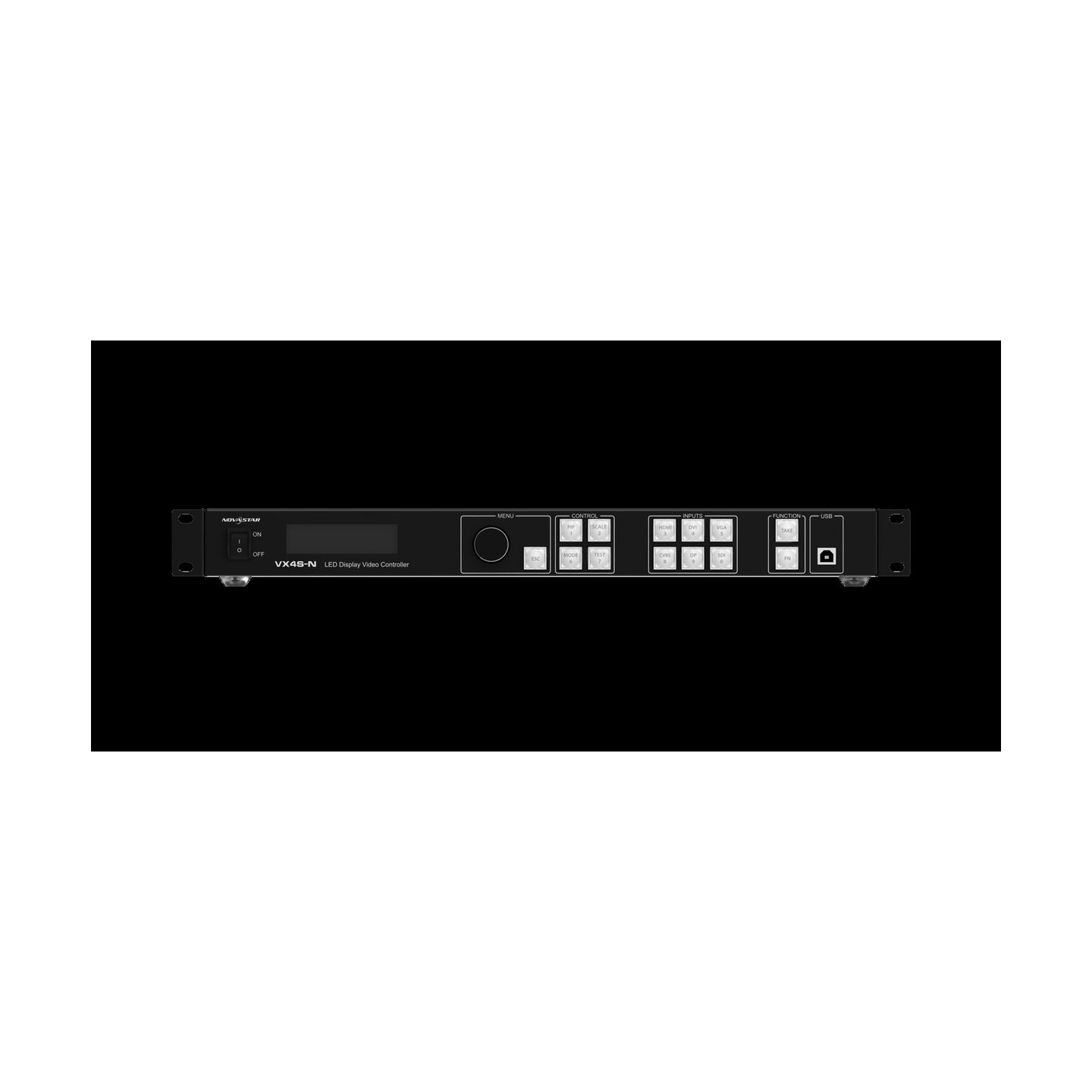
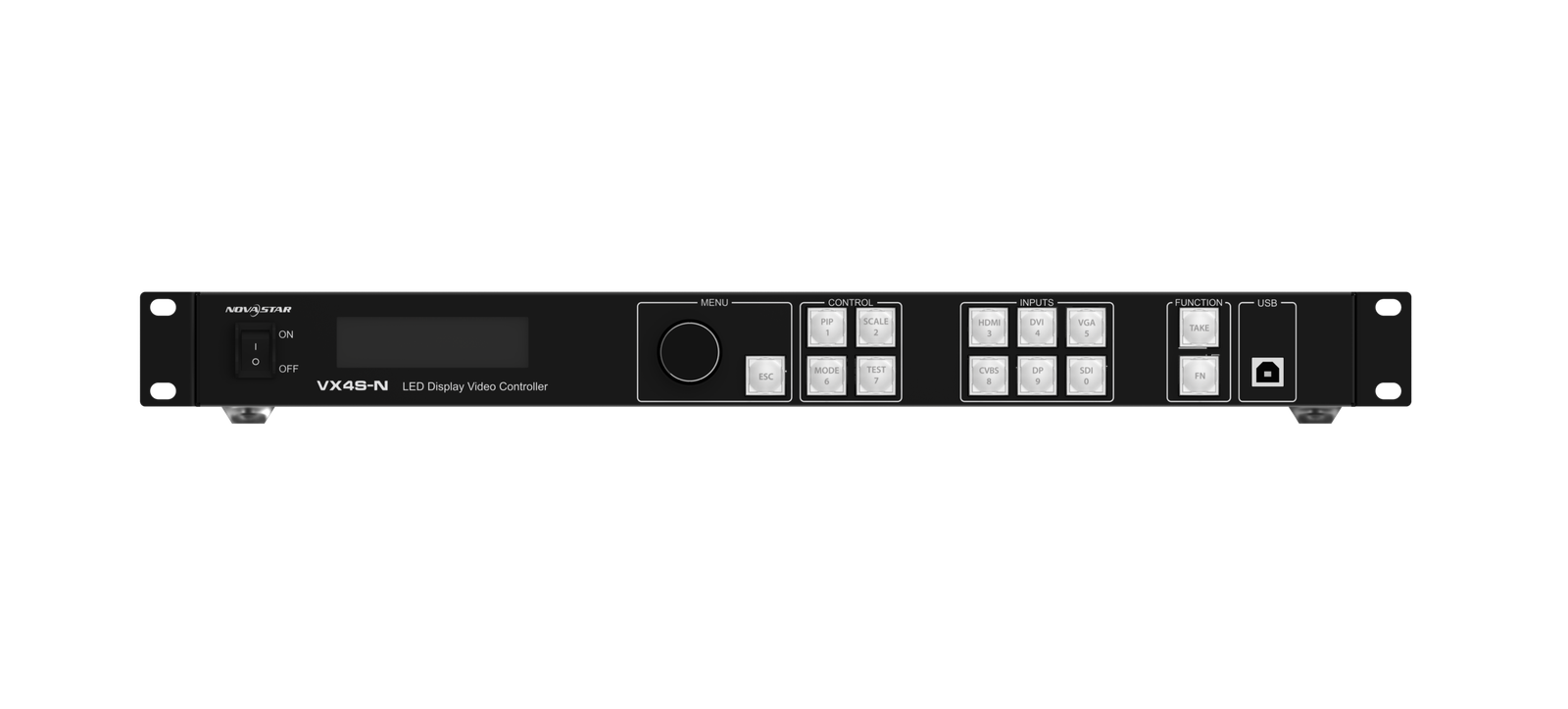
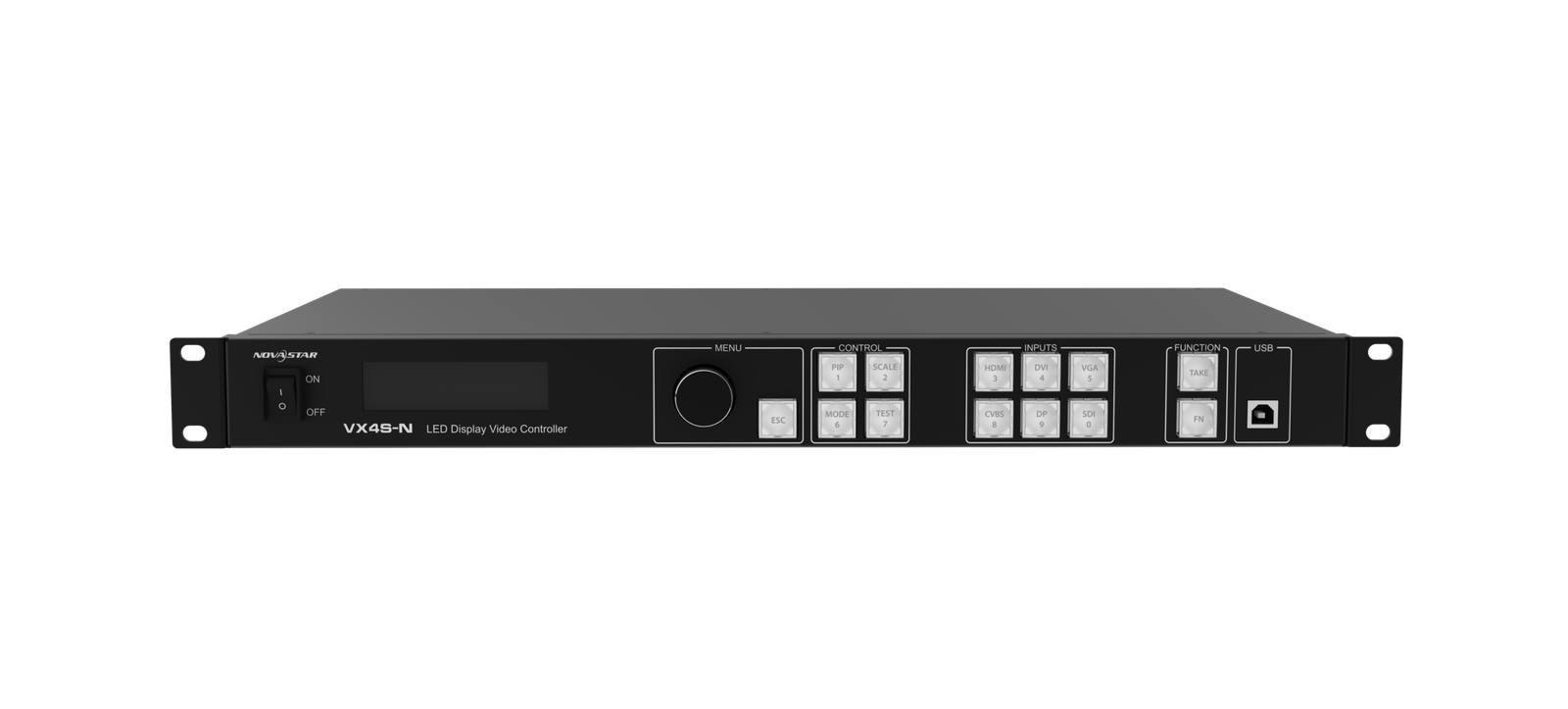
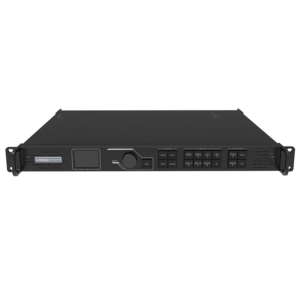
What is the NovaStar VX4S-N all-in-one LED controller?
The VX4S-N is a compact legacy controller for an existing single-screen LED system. It accepts one selected source, shapes that image for the LED canvas and sends the result through four Ethernet outputs. It combines basic video processing and LED sending in the same rack unit.
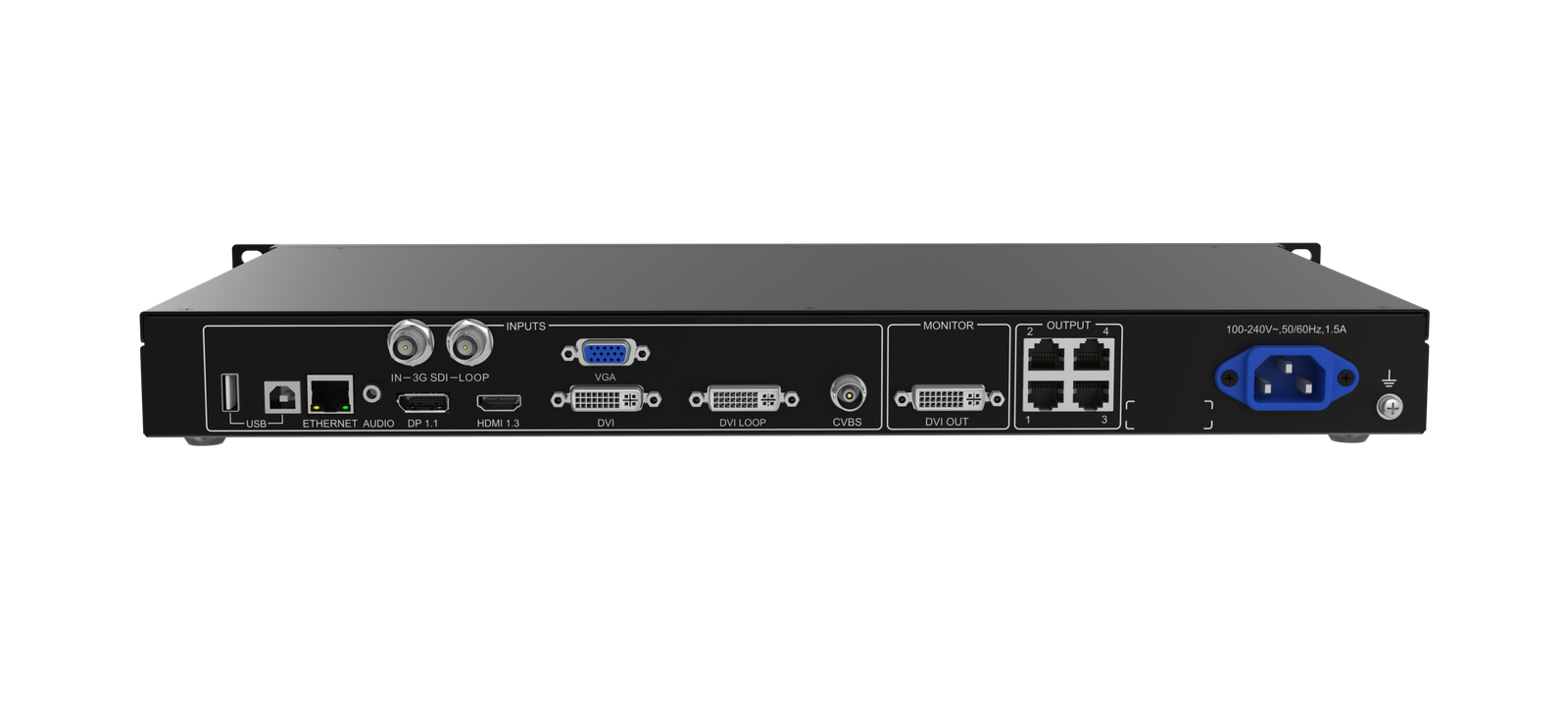
The “-N” matters. The VX4S-N has one each of the listed source types, including a 3G-SDI input and loop-through path. Check the exact model label and rear panel before using a VX4S document, configuration file or firmware package on this unit.
VX4S-N key features
- Flexible legacy source choice: accept 3G-SDI, HDMI, DVI, DisplayPort, VGA or CVBS when the system has a mix of cameras and presentation devices.
- Switching with PIP: keep a main source on the LED wall while placing one supporting image where the operator needs it.
- Saved layouts and image mosaic: use a repeatable configuration for an installed screen rather than rebuilding it during a live change.
- Four-port LED mapping: confirm the cabinet file and physical Ethernet order before changing video settings.
VX4S-N specifications
| LED load | Up to 2.3 million pixels. |
|---|---|
| LED outputs | 4 Gigabit Ethernet outputs. |
| Video inputs | 3G-SDI, HDMI 1.3, DVI, DP, VGA and CVBS. |
| Image tools | Scaling, PIP, presets, image mosaic and source switching. |
VX4S-N inputs: choose 3G-SDI, HDMI, DVI, DP, VGA or CVBS
Choose the source connection from the equipment that must feed the LED wall. Use 3G-SDI for a compatible camera or broadcast-style path. Use HDMI, DVI or DisplayPort for a computer or media source. VGA and CVBS keep older sources available when the existing rack still needs them. The direct connection is usually clearer and safer than a chain of unnecessary adapters.
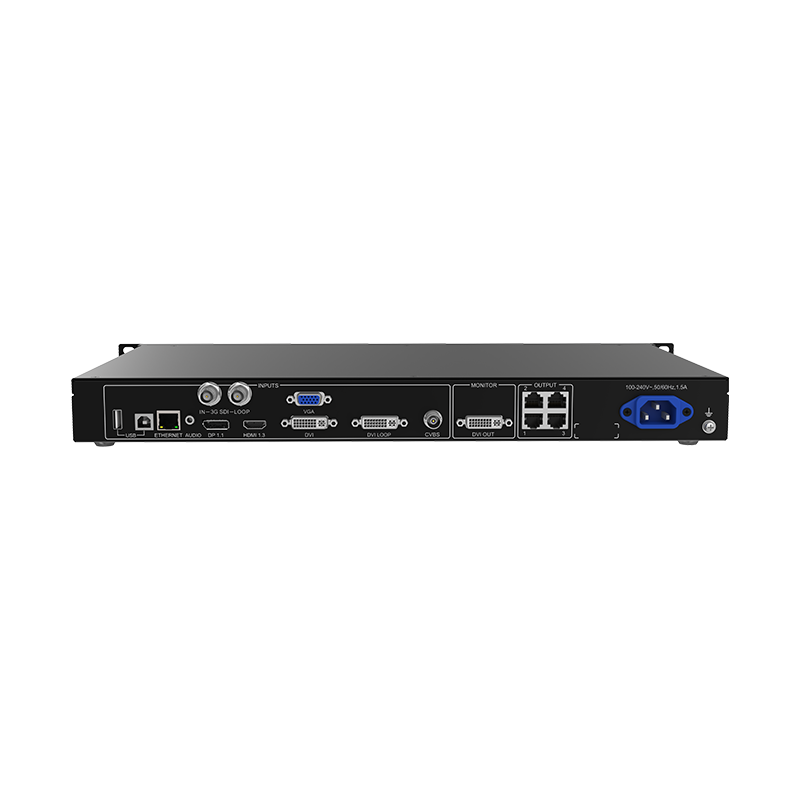
DVI and 3G-SDI have loop-through connections, while DVI OUT can be used as a monitor connection. That gives an installer a way to pass a selected input onward or see a local result without treating every connector as an LED output.
| Source type | Useful input choice | Check before installation |
|---|---|---|
| Camera or broadcast-style source | 3G-SDI | Confirm a supported format; the documented 3G-SDI limit is up to 1920 × 1080 at 60 Hz. |
| Computer or media source | HDMI, DVI or DP | Confirm the output resolution and HDCP behavior before the rack is closed. |
| Older presentation or AV equipment | VGA or CVBS | Test the real signal and image quality rather than assuming a converter will improve it. |
| Local confidence check | DVI OUT | Use the monitor path during setup; it does not replace the mapped LED output check. |
Can the VX4S-N run your LED wall? Four ports and 2.3 million pixels
The VX4S-N has four Gigabit Ethernet outputs with a documented total capacity of 2.3 million pixels. That total is the safe planning number for the whole screen. Do not add the four ports together as separate 2.3-million-pixel allowances.
The canvas also has documented axis limits of 3840 pixels wide and 1920 pixels high. Check total pixels, canvas shape and each cabinet chain together. A wall can meet the total limit yet still fail when an output path or receiving-card configuration does not match the physical cable route.
| Screen check | VX4S-N planning rule |
|---|---|
| Total LED pixels | Keep the complete canvas at or below 2.3 million pixels. |
| Canvas dimensions | Keep the planned width and height within the documented 3840 and 1920 pixel limits. |
| Four Ethernet paths | Map each cabinet chain to the actual physical output order. |
| Receiving-card data | Use the configuration that belongs to this screen before adjusting the source picture. |
VX4S-N scaling, PIP and monitor output
Scaling determines how a source fits the LED canvas. Full-screen scaling fills the wall; pixel-to-pixel keeps the source at its native size; custom scaling sets a deliberate picture area. PIP can place a secondary image over the main picture. These tools help a presentation, camera feed or logo fit an existing screen without adding another processor.
Use the DVI monitor output to check a source or setup result locally. Then confirm the LED wall itself. A correct monitor image does not prove that the cabinet map, output order and receiving-card configuration are correct.
VX4S-N setup: regular screen or custom cabinet map?
A regular wall made from matching cabinets can use the controller’s quick configuration route. A custom layout, irregular cabinet order or mixed cabinet set needs the correct RCFGx configuration process described in the VX4S-N manual. The useful question is not “can I finish setup faster?” It is “does this shortcut describe my actual screen?”
Save the working screen configuration before changing it. Then build the wall first, test the cabinet order, select the source and finally set scaling or PIP. This sequence keeps an LED mapping problem separate from a video-input problem.
| Installation type | Start here | Reason |
|---|---|---|
| Regular same-cabinet screen | Quick configuration | The manual documents a simpler path for a regular screen. |
| Custom, curved or mixed-cabinet layout | RCFGx configuration process | The screen needs its correct cabinet data and physical connection order. |
| Known working legacy wall | Backup, then test | A saved file makes recovery much safer than rebuilding the screen from memory. |
VX4S-N image mosaic, redundancy and saved configuration
The VX4S-N manual documents image mosaic, redundancy and preset workflows. These features are planning tools, not automatic protections. Image mosaic needs a complete source and controller plan. A redundancy path must be connected and tested with the real wall. A preset is useful only after it has been saved from a configuration that is known to work.
For any installed display, keep three things together: the exact controller model and version, the receiving-card configuration and the physical Ethernet order. That small record is more useful during a fault than a vague note that the wall “used to work.”
VX4S-N applications for compact existing LED systems
These scenarios fit a known installation that stays within the documented source and canvas limits. They are not claims of 4K60 or HDR capability.
Camera-fed displays
Use the documented 3G-SDI input for a compatible camera or broadcast-style source after its format has been tested.
Presentation walls
Fit a compatible HDMI, DVI or DP computer source to an established LED canvas with deliberate scaling.
Legacy AV rooms
Keep a working VGA or CVBS source path in place while the cabinet configuration and video source are checked separately.
Fixed LED systems
Save the cabinet file, preset and cable order for a repeatable installation that needs a tested recovery point.
VX4S-N manual, datasheet, firmware and release notes
These four links are model-specific VX4S-N resources. Use the manual and datasheet to plan the system. The firmware is an archived exact-model package, not a routine update button: verify the controller version and save the working screen configuration before changing anything. Read the release notes with the package.
VX4S-N user manual
Open the official VX4S-N User Manual PDF for inputs, RCFGx setup, redundancy and mosaic procedures.
VX4S-N datasheet
Open the official VX4S-N Datasheet PDF for capacity, ports and source limits.
VX4S-N firmware
Download the archived exact-model VX4S-N firmware package only after saving the screen configuration and confirming hardware compatibility.
Firmware release notes
Read the official VX4S-N V1.1.0.0 release notes before applying the archived package.
When an existing VX4S-N needs a current controller
Keep VX4S-N when the existing wall fits the 2.3-million-pixel, four-output design and the real source stays within its documented formats. Choose a current processor when the project begins with 4K60, HDR, more layers, a larger output plan or a current control and support workflow.
Start a replacement comparison with the full canvas, source list, receiving cards and operator needs. Then review the current video processor range for the model that matches those facts rather than the closest legacy name.
VX4S-N frequently asked questions
Is VX4S-N capacity 2.3 million or 2.6 million pixels?
The exact VX4S-N official datasheet documents a total of 2.3 million pixels. Use that figure when planning the LED canvas.
Can I use Quick Configuration for every wall?
No. It is intended for a regular screen with matching cabinets. Use the correct RCFGx workflow for a custom or mixed-cabinet layout.
Can I install the archived firmware without checking the controller?
No. Confirm the exact VX4S-N unit and version, save the existing configuration, and read the matching release notes before an update.
Reviews
There are no reviews yet.