
What is the NovaStar VX1 all-in-one LED controller?
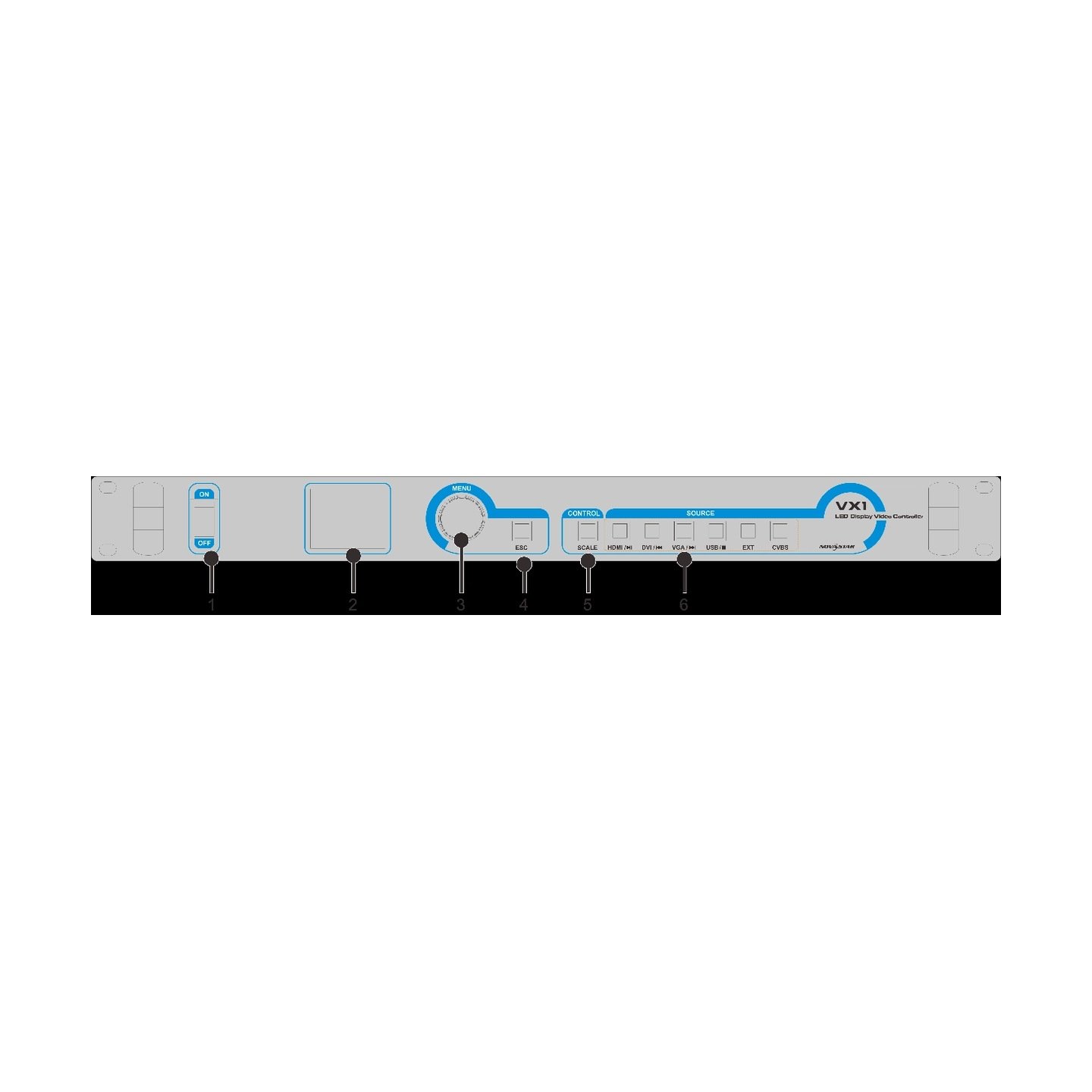
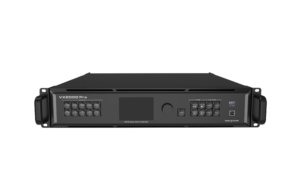
The VX1 is an older all-in-one controller for a simple LED system. It accepts a supported video source, shapes that picture for the LED canvas, then sends the finished image to the receiving cards through two Ethernet outputs.
It is most useful when an existing wall needs a laptop, an older video source or a small USB playback loop. It is not a modern 4K processor or a multi-window switcher. That distinction should be clear before a buyer tries to replace a newer processor with a VX1.
VX1 key features
- One compact box for an existing wall: it processes a supported source and sends the finished image to the cabinets without a separate sending controller.
- Useful legacy source choice: DVI, HDMI 1.3, VGA and CVBS suit an installed presentation rack that still uses those connectors.
- USB playback: a simple local loop can keep a lobby or existing display running when no live source is needed.
- Simple image control: one adjustable layer and three scaling choices handle a basic full-screen or picture-in-picture layout.
VX1 specifications
| LED load | Up to 1.3 million pixels. |
|---|---|
| LED outputs | 2 Gigabit Ethernet outputs. |
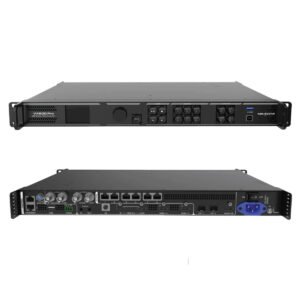
| Video and media inputs | DVI, HDMI 1.3, VGA, CVBS and USB playback. |
| Image tools | One adjustable layer, crop and three scaling modes. |
VX1 source choices: laptop, legacy video or USB playback
Start with the source that will actually feed the screen. DVI and HDMI 1.3 suit many older computers and playback devices. VGA and CVBS keep compatibility with older equipment. USB playback can provide a local loop when the content is already prepared on a drive.
The supported digital inputs are an HD class, not a promise of 4K or HDR support. Confirm the source resolution before the display is installed. If a laptop sends a format beyond the VX1 limit, the controller cannot make that signal compatible just by scaling it.
| Source need | VX1 path | Practical result |
|---|---|---|
| Older computer or playback device | DVI or HDMI 1.3 | Use a supported HD signal and scale it to the wall. |
| Legacy AV source | VGA or CVBS | Keep an existing source path without adding a separate processor. |
| Prepared local loop | USB playback | Play stored media at the screen without treating the VX1 as a network media server. |
Can the VX1 run your LED wall? 1.3 million pixels across two ports
The VX1 can load up to 1.3 million pixels in total through two Gigabit Ethernet outputs. Count the entire LED canvas first, then map cabinet chains to both outputs. Two ports do not mean that two separate 1.3-million-pixel walls can be added together.
A simple check is better than a guess: multiply the finished screen width by its height, confirm the total stays inside 1.3 million pixels, then confirm the cabinet connection order and receiving-card file. The source image must also be planned separately from LED capacity.
| Check | Why it matters |
|---|---|
| Total wall pixels | Must remain at or below the controller’s 1.3-million-pixel ceiling. |
| Two output paths | Each cabinet chain needs the correct physical order and configuration. |
| Source resolution | Must be supported before it can be scaled for the LED canvas. |
VX1 scaling modes and one-layer image control
The VX1 has three useful image choices. Full-screen scaling fills the LED canvas. Pixel-to-pixel keeps the source at its original size. Custom scaling lets the operator set a deliberate image area. One adjustable layer can be positioned, resized and cropped when the source needs a border or a smaller image area.
Choose the result before the event, not after the audience sees a stretched presentation. Pixel-to-pixel can leave unused screen space when the source is smaller than the wall. Full-screen scaling fills the wall but changes the source size. Custom scaling is useful when the content needs to stay inside a defined area.
VX1 setup for an existing LED wall
Setup starts with the wall, not the source. Confirm the receiving-card configuration and the physical Ethernet path first. Then select the source, choose the scaling mode and save a known-good preset. This order makes it easier to see whether a problem is in the LED map or in the incoming video.
- Record the wall canvas and cabinet data path.
- Confirm the receiving-card configuration before changing image settings.
- Connect a supported source and choose the input.
- Set full-screen, pixel-to-pixel or custom scaling.
- Save a working preset after the wall and source both look correct.
For a new or irregular LED layout, use the correct receiving-card configuration process rather than guessing cabinet order from the front panel.
VX1 applications for simple existing LED systems
These are existing-system scenarios, not reasons to select VX1 for a new 4K production design.
Existing presentation walls
A supported laptop source can be scaled to a small established LED canvas without adding a separate sender.
Local USB loops
Prepared media can play from a USB drive when the display needs a simple on-site loop.
Legacy AV transitions
VGA and CVBS inputs can keep compatible older sources in service while the rest of the wall is assessed.
Two-port LED walls
A modest existing screen can be mapped over two Ethernet outputs when its total pixel count stays within capacity.
When an existing VX1 should move to a current processor
Keep a VX1 when the LED wall fits its 1.3-million-pixel limit and the real source path stays within its documented HD inputs. Move to a current processor when the source requires 4K, HDR, more layers, broader live switching or a current software and support path.
Do not replace it by model name alone. Start with the LED canvas, required source connectors, number of on-screen images and the receiving-card configuration. Then compare a current model in the Video Processors category that answers those requirements directly.
VX1 datasheet and legacy support
A product-specific VX1 specifications document is available in the site archive. No exact VX1 user manual or firmware package was verified during this audit, so no manual, firmware button or compatibility promise is shown here.
Before any legacy update is considered, record the controller hardware version and save the working screen configuration. A current processor may be the safer route when the system needs a feature that the VX1 never documented.
VX1 datasheet
Open the VX1 datasheet archive for documented inputs, capacity and operating limits.
VX1 setup checklist
Use the VX1 setup checklist before changing a working cabinet map or source setting.
Current processors
Browse current video processors when the system needs 4K, more layers or a current support path.
Compatibility review
Ask for a compatibility review; provide the VX1 label, receiving-card model, cabinet file, LED canvas, source format and Ethernet path.
VX1 frequently asked questions
Can the VX1 play media from a USB drive?
Yes. The VX1 has documented USB playback for prepared image and video files. Treat it as local playback, not as a modern network content-management platform.
Can the VX1 run a 4K source?
No 4K input support is documented for VX1. Confirm the exact source resolution before building the system.
Why does a working source still look wrong on the LED wall?
The source signal and the cabinet map are separate. Confirm the receiving-card file, physical Ethernet order and scaling mode before changing the source device.
Reviews
There are no reviews yet.